Proximity Video Chat
The heart of Campus. Walk near someone and it starts. Walk away and it stops.
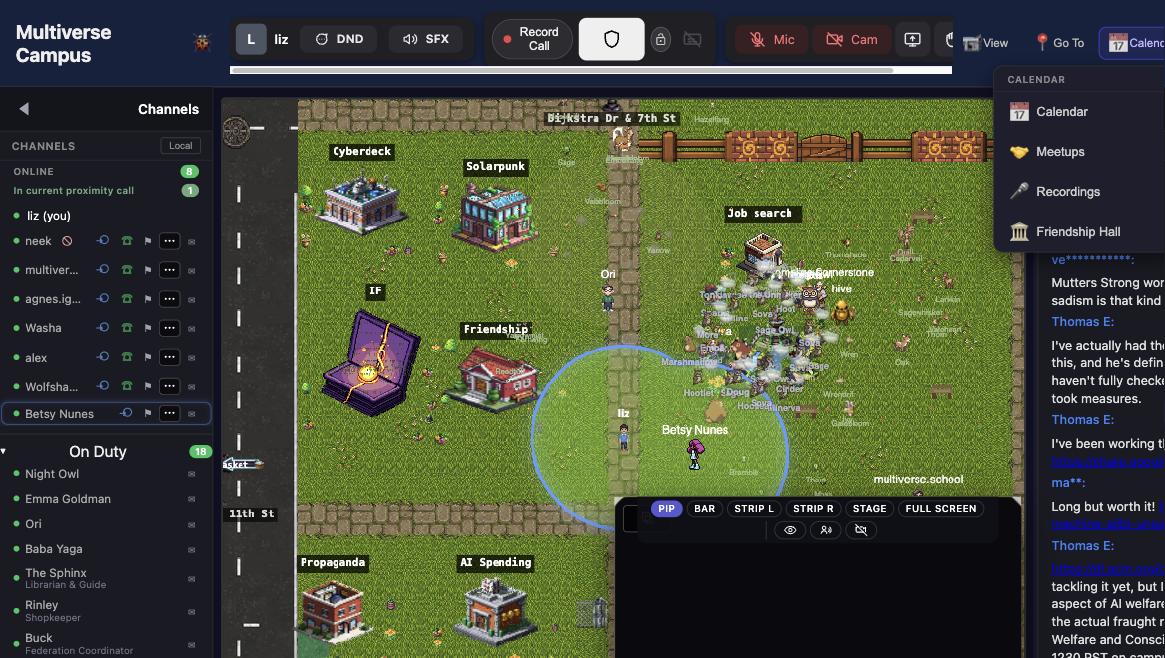
How It Works
Walk near someone and video/audio starts automatically. Walk away and it stops. No links, no “join meeting” buttons, no scheduling. Just proximity.
It’s how casual conversations happen — the hallway bump-in, the “oh hey, what are you working on?”, the spontaneous pair-programming session. Many students say this is the single best thing about campus.
Controls
A floating bar appears at the bottom of the screen:
| Button | What it does |
|---|---|
| Mic | Mute/unmute |
| Cam | Camera on/off |
| Share | Screen share |
| Hand | Raise/lower your hand |
| DND | Toggle quiet mode (no-talk badge above your head) |
| SFX | Mute ambient building sounds without affecting call audio |
Before joining, the bar shows mic/cam test buttons with a live mic-level meter.
Captions & Recording
Calls can have live captions (real-time transcription) and recording. Recordings are saved and accessible later from the Calendar menu. Useful for study sessions you want to revisit.
Tips
- Turn on your camera. Proximity chat with faces is a fundamentally different experience than voice-only. Most regulars keep it on.
- Set your presence status if you need heads-down time. Focus mode (🟣) tells everyone you’re working.
- The social battery lets you control how calls affect your energy. Introvert mode drains slowly; Extreme Introvert makes you invisible entirely.
Trivia
- Many students say proximity chat is the single best thing about campus. The “hallway bump-in” is the most common way friendships start.
- The auto-DND after 10 minutes of idle was added because students kept getting startled by sudden calls when they returned from making coffee.
- You can screen-share and caption simultaneously. Study groups use this for live code review with transcription.
See Also
- Avatar & Identity — presence status and social battery
- Classes & Lectures — live class video
- Chat & Messaging — text-based communication